
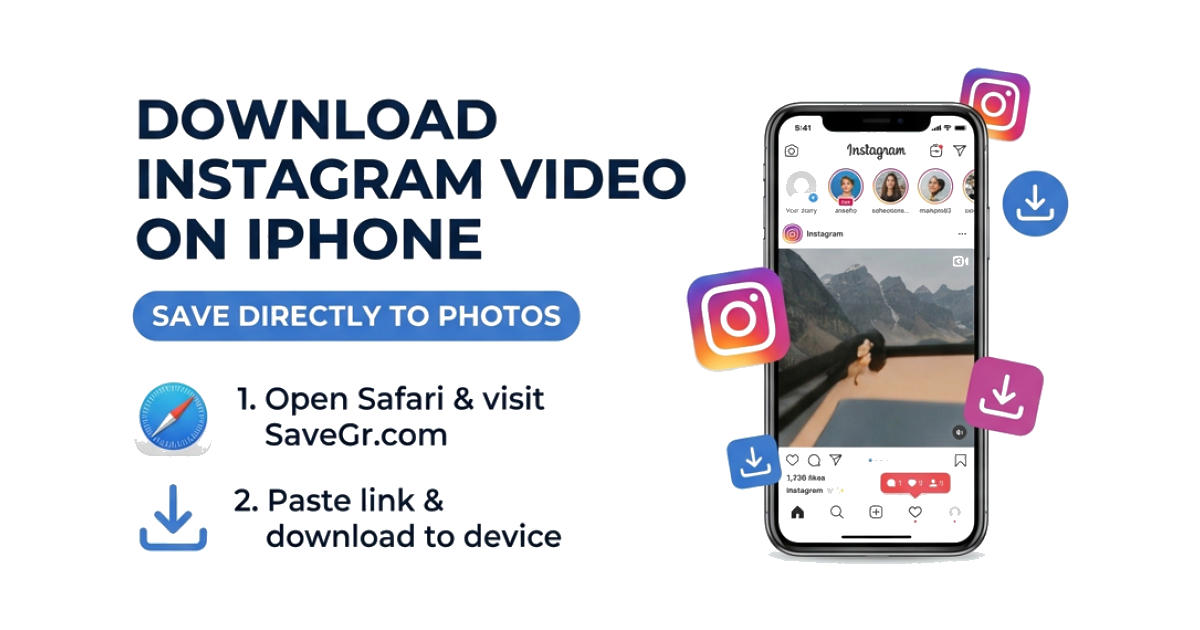
How to Download Instagram Videos on iPhone (Step-by-Step)
If you’ve ever tried saving a video from Instagram on your iPhone, you probably ran into the same issue:
There’s no actual download button.
You can “save” posts inside Instagram, but that only stores them in your account — not in your camera roll.
So if you want the video on your phone, you need a different approach.
This guide walks you through the simplest method that actually works in 2026.
Quick Answer
Here’s the fastest way to download Instagram videos on iPhone:
- Copy the video link from Instagram
- Open Safari (or any browser)
- Paste the link into an online downloader
- Tap download and save the video
If you want a quick option, you can use our Instagram Video Downloader to do it in seconds.
Why Downloading Instagram Videos on iPhone Feels Complicated
This isn’t just you.
iOS has stricter rules compared to Android, especially when it comes to downloading media from apps.
Here’s why it feels harder than it should:
- Instagram doesn’t provide a built-in download feature
- Apple limits how apps can access and save external media
- Many apps require login or stop working after updates
That’s why browser-based tools tend to be the most reliable option.
Method 1: Use Safari (No App Required)
This is the easiest and most consistent method.
Step 1: Copy the Instagram Video Link
Open Instagram and find the video you want.
Tap the three dots (•••) and select Copy Link.
Step 2: Open Safari
Launch Safari or any browser on your iPhone.
Step 3: Paste the Link
Go to a downloader page and paste the link into the input box.
Step 4: Download the Video
Tap the download button, then save the video to your device.
Depending on your iOS version, the file may go to:
- Photos app
- Files app (Downloads folder)
Where Does the Video Go After Downloading?
This is something many people get confused about.
- On newer iPhones → it may save to the Files app first
- From there → you can move it to Photos
- On some setups → it saves directly to your camera roll
If you don’t see it immediately, check your Downloads folder.
Common Problems (And How to Fix Them)
The download button doesn’t work
Try refreshing the page or using another browser.
The video won’t save to Photos
Check the Files app → Downloads folder, then move it manually.
The link isn’t working
Make sure you copied the correct URL from Instagram.
The video is private
If the account is private, you won’t be able to download it unless you have access.
Can You Download Reels, Stories, and Photos Too?
Yes — the process is basically the same.
Depending on the content, you can use:
- Instagram Reels Downloader for short videos
- Instagram Photo Downloader for images
- Instagram Highlights Downloader for saved stories
Each tool is optimized for that specific format, but the steps are almost identical.
Is It Safe to Use Online Downloaders?
This is a common concern, and it makes sense.
A safe tool should:
- Not require login
- Not ask for personal information
- Only process public links
If you’re just pasting a link and downloading, the risk is minimal.
Can You Download Private Instagram Videos?
No — at least not directly.
Private content is protected by Instagram’s privacy system.
If you’re looking for more details, you can check this guide on downloading private Instagram content.
What Actually Works (From Real Use)
After testing different methods, here’s what consistently works:
- Using Safari instead of apps
- Avoiding tools that require login
- Copying the correct link (not share preview links)
Trying to rely on apps usually leads to more issues than solutions.
FAQs
Can I download Instagram videos directly to my camera roll?
Yes, but sometimes the video first saves to the Files app. You can move it to Photos easily.
Do I need to install an app?
No. Everything works directly in your browser.
Is it free to download Instagram videos?
Yes. Most online tools allow you to download videos for free.
Does Instagram notify when I download a video?
No. There are no notifications sent to the content owner.
Final Thoughts
Downloading Instagram videos on iPhone isn’t as straightforward as it should be.
But once you know the method, it’s actually pretty simple.
No apps. No login. No complicated setup.
Just copy the link, paste it, and save the video.
That’s it.