
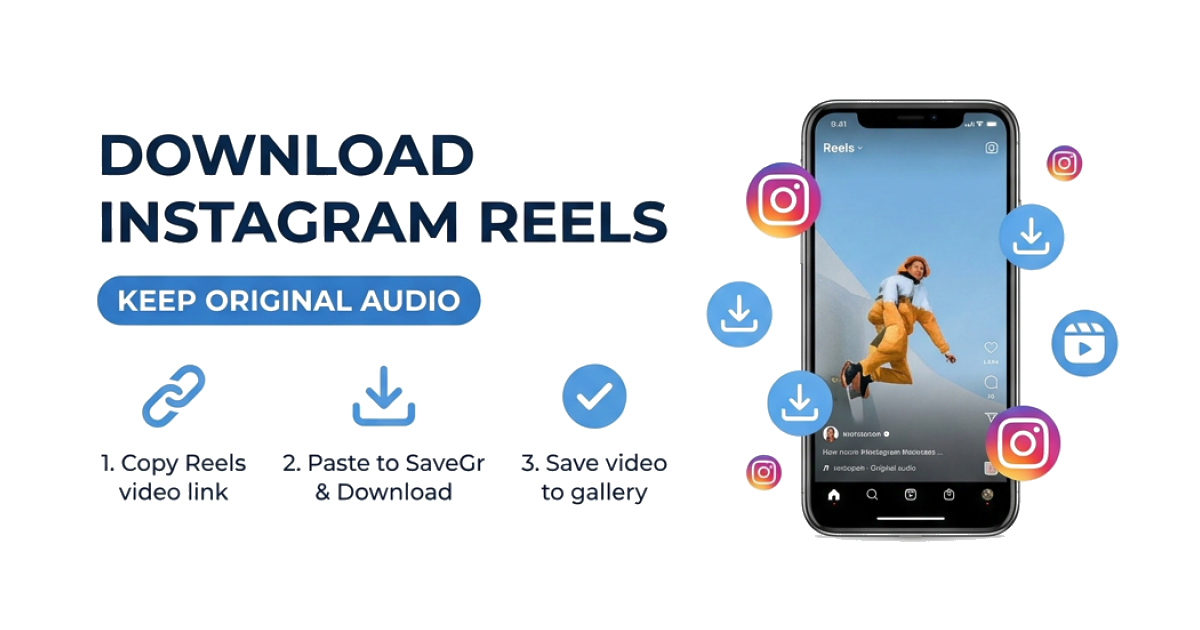
To download an Instagram Reel with audio, copy its Instagram link, paste it into the Instagram Reels Downloader, and save the available MP4 file. The same browser workflow works on Android, iPhone, Windows, and macOS.
How to download an Instagram Reel
- Open the Reel in Instagram.
- Tap Share, then choose Copy link.
- Open the Instagram Reels Downloader in your browser.
- Paste the link and select Download.
- Choose one of the available files and save it to your device.
The exact file choices depend on what Instagram makes available for that Reel. A public Reel normally works with the standard downloader. A Reel from a private account requires access to that account and a different workflow.
Download Reels on Android
Android browsers usually place downloaded files in the Downloads folder. Some gallery apps detect the new video automatically; others do so after the file has been opened once.
- Copy the Reel link in Instagram.
- Open your preferred browser.
- Paste the link into the downloader and process it.
- Tap the MP4 download option.
- If the video opens instead of downloading, use the video menu and choose Download, or press and hold the link.
For a broader walkthrough that also covers feed videos, see how to download Instagram videos on Android without an app.
Download Reels on iPhone
Safari may save the file to Files before it appears in Photos. This is normal and does not mean the download failed.
- Copy the Reel link.
- Open Safari and use the Reels downloader.
- Paste the link, process it, and tap the available download.
- Open Safari's download list, then open the saved file.
- Use the Share menu and choose Save Video if you want a copy in Photos.
The location of Safari downloads can be changed in iPhone settings. If you cannot find the file, check Files > Downloads or the folder configured for Safari. The iPhone Instagram video guide explains this file flow in more detail.
Download Reels on a desktop computer
On Windows or macOS, open the Reel in a browser and copy the URL from the address bar. Paste it into the downloader, choose the available file, and check the browser's download folder when it finishes.
A valid Reel URL commonly contains /reel/ followed by the post code. Tracking parameters after the main URL are usually unnecessary; if a link fails, copy it again directly from Instagram.
Why a downloaded Reel may have no audio
Audio availability is controlled by the source media Instagram provides. A Reel may be silent after download when:
- the creator uploaded a silent video;
- the audio track is restricted or unavailable in your region;
- the copied link points to a preview rather than the Reel;
- Instagram has changed or removed the underlying media;
- the selected file option contains video only.
Try copying a fresh link and checking the other available download options. If every available file is silent, screen recording while the Reel is playing may be the practical fallback, subject to the creator's rights and your local rules.
Public and private Reels
The standard downloader can request media that Instagram exposes publicly. It cannot sign in as you or bypass a private account's access controls.
If you are an approved follower and have permission to retain the content, use the Private Instagram Downloader instructions. Do not enter your Instagram password into a downloader, and do not attempt to access content you cannot already view.
Common download problems
The link is invalid
Open the Reel itself and copy its link again. Avoid copying a link to a profile, search page, or message preview.
The content is unavailable
The Reel may have been deleted, archived, restricted, or moved behind a private account. A downloader cannot retrieve media that Instagram no longer serves to the request.
The video opens in a new tab
Use Download linked file, the browser's video menu, or Save video as, depending on the device. Browser behavior differs, but the opened media can often still be saved.
The file is lower quality than expected
Choose the highest listed option. The downloader cannot create detail that is absent from the source, and Instagram may serve different variants of the same Reel.
Copyright and permission
Being able to download a Reel does not transfer ownership or grant permission to republish it. Save only content you own or are authorized to use. Ask the creator before redistributing, editing, or using their work commercially.
For Story-specific failures, use the troubleshooting guide on why certain Instagram Stories cannot be downloaded.