
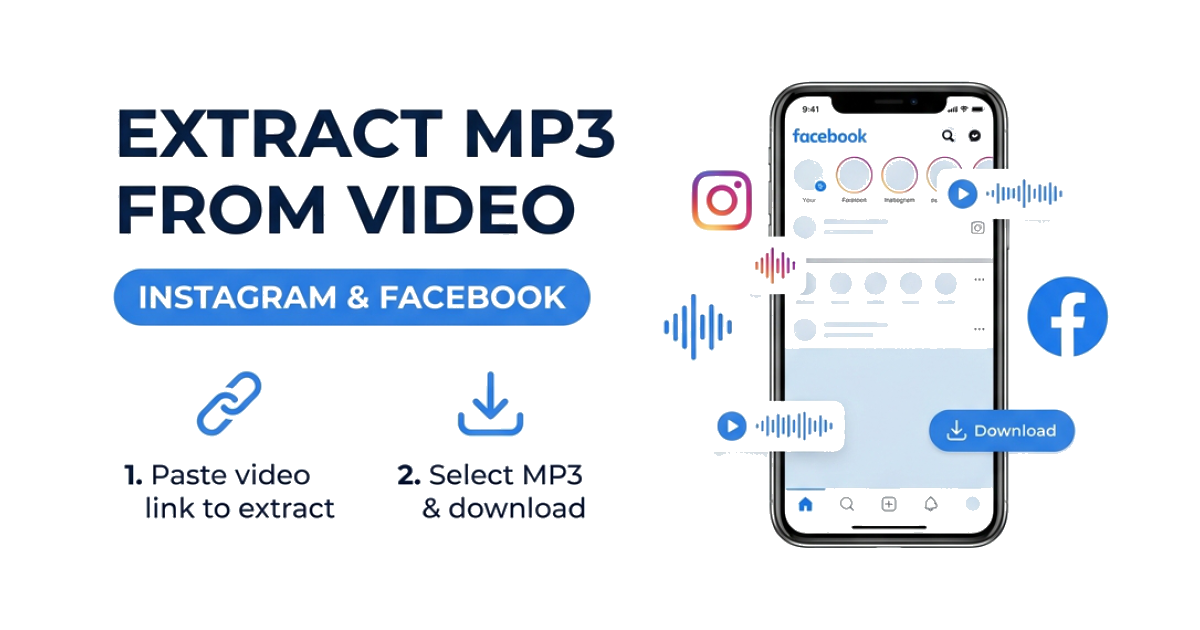
How to Extract Audio (MP3) from Instagram & Facebook Videos
Social media platforms like Instagram and Facebook are goldmines for amazing music tracks, trending sound effects, inspirational speeches, and funny voiceovers. Often, you don’t need the actual video clip — you just want the audio track to listen to on the go, use in your own video edits, or save as a ringtone.
However, neither Instagram nor Facebook provides a built-in feature to export or convert video posts into audio files.
In this guide, we will walk you through the easiest and most effective ways to extract high-quality MP3 audio from any public Instagram or Facebook video on Android, iPhone, and PC.
Why Extracting Audio Directly is Better Than Screen Recording
Many users try to capture audio by recording their phone screens while the video plays. While this works in a pinch, it has major drawbacks:
- Degraded Sound Quality: Screen recording captures audio through your device's microphone, adding background noise, echoes, and distortion.
- Large File Sizes: Storing a video file consumes significantly more space (typically 10x more) compared to a clean audio track.
- Manual Editing Required: You have to use a separate video editing app to trim the recording and strip the video track.
By extracting the digital audio track directly from the source server, you get a clean, high-fidelity MP3 file with zero background noise and no extra editing required.
Method 1: Using SaveGr’s Direct Audio Extractor (Recommended)
SaveGr features a high-performance cloud processing engine that connects directly to the video source, extracts the raw audio stream, and converts it into a standardized MP3 file in seconds.
Why Choose SaveGr for Audio Extraction?
- High Bitrate Options: Extract audio at 128kbps, 192kbps, 256kbps, or premium 320kbps quality.
- Server-Side Conversion: No software or browser extensions are installed on your device.
- Free and Unlimited: Convert as many videos as you want without caps.
- Universal Compatibility: MP3 files work on every smartphone, audio player, and video editor.
Step-by-Step Guide for Android and Mobile Devices
Android handles direct file downloads smoothly. Follow these steps to save your audio:
Step 1: Copy the Video Link
- Open Facebook or Instagram.
- Find the video, reel, or post containing the audio you want.
- Tap Share and select Copy Link.
Step 2: Convert to MP3
- Open your browser and navigate to SaveGr.com.
- Paste the copied link into the input field and tap Download.
- The system will scan the video and display the results.
Step 3: Choose MP3 Option
- Scroll down to the Audio MP3 section.
- Select your desired quality (e.g., 320 kbps for maximum clarity).
- Click the Extract Audio button.
- Once processing completes, click Download File to save the MP3 directly to your device.
Step-by-Step Guide for iPhone (iOS)
To ensure the file downloads directly to your audio library, using iOS Safari is highly recommended.
- Copy the URL: Locate the video or reel inside the Instagram/Facebook app, tap Share, and select Copy Link.
- Visit Downloader: Open Safari, visit SaveGr, paste the link, and tap Download.
- Trigger MP3 Render: Select your desired kbps quality slot under the Audio section and tap Extract Audio.
- Download Safari File: Tap Download on the Safari confirmation prompt.
- Listen or Save: Access the downloaded MP3 in your iPhone's Files app (Downloads folder). You can play it, share it via messages, or send it to video editing apps like CapCut.
Audio Quality Comparison: Which Bitrate Should You Choose?
When converting video to audio, choosing the right bitrate is important for balancing file size and sound clarity. The table below compares the different options available:
| Bitrate | Quality Level | File Size (per min) | Best Used For |
|---|---|---|---|
| 320 kbps | Studio Quality (Premium) | ~2.3 MB | Music tracks, DJ mixes, high-fidelity soundscapes |
| 256 kbps | High Quality | ~1.8 MB | Detailed podcasts, acoustic performances |
| 192 kbps | Standard Quality | ~1.4 MB | General speeches, voiceovers, sound effects |
| 128 kbps | Economy Quality | ~0.9 MB | Simple dialogue, short meme audio clips |
Frequently Asked Questions
Can I extract audio from private Instagram or Facebook videos?
Yes, but you must use the page source method. Copy the page source of the private video, paste it into our Private Downloader, scroll to the Audio section, and click Extract Audio.
What audio format is downloaded?
All extracted tracks are exported as standard MP3 files, which are universally compatible with all audio players, operating systems (Windows, macOS, iOS, Android), and editing platforms.
Does extracting audio use up more data?
No. In fact, downloading just the audio track consumes significantly less mobile data than downloading the full high-definition video file.
Can I convert long-form videos (e.g., 30-minute clips)?
Yes. Our cloud rendering servers can process longer videos. Keep in mind that processing longer files may take a few additional seconds to complete.